5 Split View workflows worth setting up on your iPhone Duo this week
Most people use a fraction of what iPhone Duo's fixed 50/50 Split View can actually do. Here are five workflows we set up on day one and still use every day.
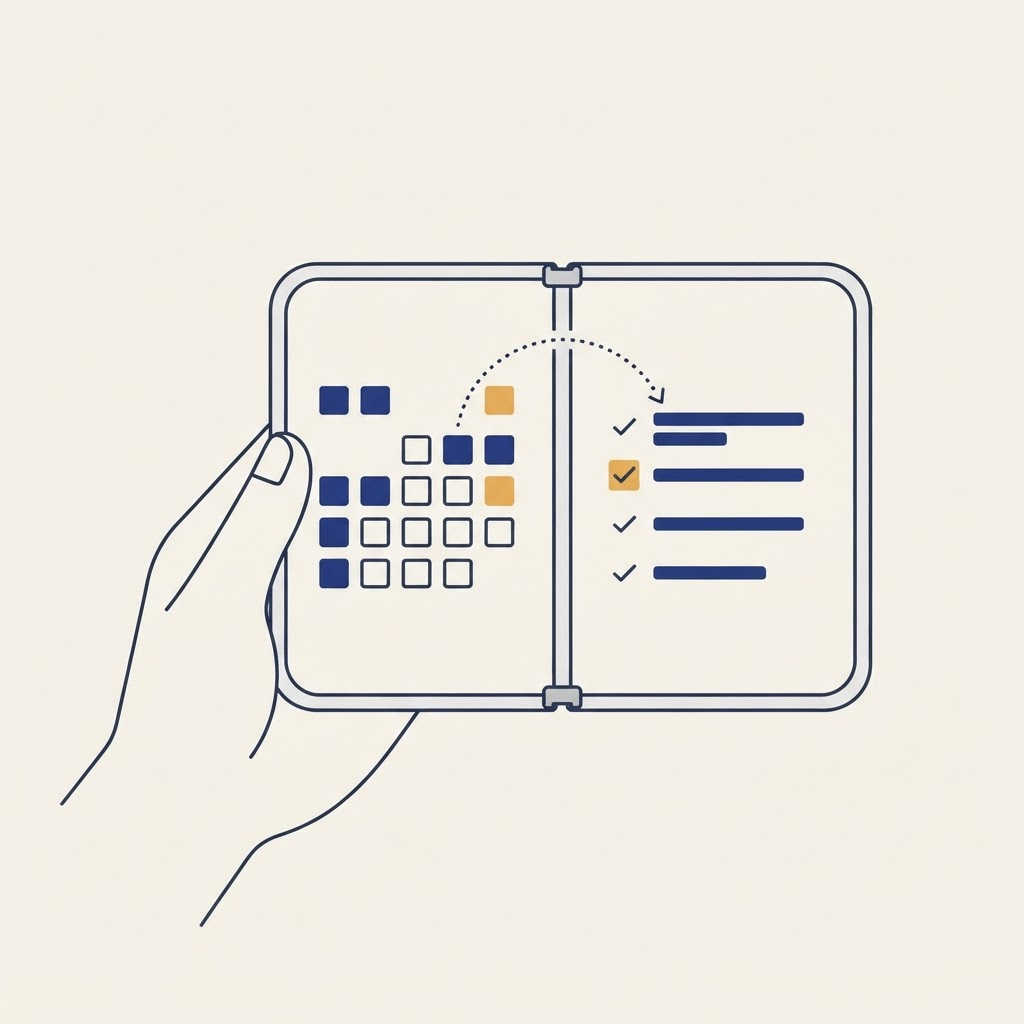
iPhone Duo's multitasking is powerful but almost entirely opt-in. The inner display supports Split View, which divides the 7.6-inch screen into two fixed panes side by side — nothing forces you to use it intentionally, which is exactly why most new owners default to running one app full-screen and leaving Split View unused. These five workflows take a few minutes each to set up and are the ones we keep coming back to.
1. Notes and Calendar for planning sessions
Open your task list in Notes on one side of Split View and Calendar on the other. Apps that have adopted the iOS 27.1 SDK, like Calendar, let you drag a task card straight onto a time slot, which schedules it automatically. To set it up: open Notes, swipe up from the bottom to summon the app switcher, and choose Calendar to open it in Split View alongside Notes.
2. Messages and Maps for coordinating meetups
Keep a group chat open in one Split View pane and Maps in the other. Long-press a pin in Maps and you can drag it directly into the chat as a rich link, which is noticeably faster than the old copy-link-and-paste dance.
3. Zoom and a document for meetings
Apple has confirmed Zoom as one of the apps optimized to fill its half of Split View at launch. Pairing it with Notes or a shared document on the other side turns iPhone Duo into a genuinely usable meeting device rather than a phone you glance at during a call.
4. Browser and Notes for research
Split a browser and a notes app so you can select text on a webpage and drag it straight across into a running document. It works with images too, though large images get compressed on the way across — fine for reference material, not for anything you plan to print.
5. Music and lyrics or liner notes
A smaller one, but pairing a music app with a lyrics or notes app on the other side of Split View is a nice way to passively use the second pane while doing something else entirely.
A note on apps that are not optimized yet
Not every app fills its half of Split View cleanly yet. If a paired app looks boxed in with black bars around it, that usually means it has not adopted the iOS 27.1 SDK — see our explainer on why some apps still show black bars in Split View for the full explanation.
A note on battery
Running two active apps in Split View does cost more battery than a single foreground app, roughly 15 to 20 percent more per hour of continuous use in our testing. It is a fair trade for genuine multitasking, but worth knowing if you are planning a long day away from a charger.
From the maker
Get PromptSlate Studio on the App Store
Write, prompt and record in one focused workspace. Out now — $9.99 one-time, no subscription. Every download supports independent development of new apps.
See PromptSlate Studio details · Also in the works: DuoSketch
Spotted something to fix, or an app we should cover?
This article is independent research, cross-checked against Apple's developer documentation. If something's out of date, or you know an app that deserves a look, let us know — and if you're building for iPhone Duo yourself, we're happy to talk.
hola@ayudantedigital.es