How to Launch the iPhone Duo Simulator in Xcode 27.1 Beta
Install the correct Xcode beta and runtime, select iPhone Duo as a destination, and run your existing app in Apple’s Device Hub step by step.

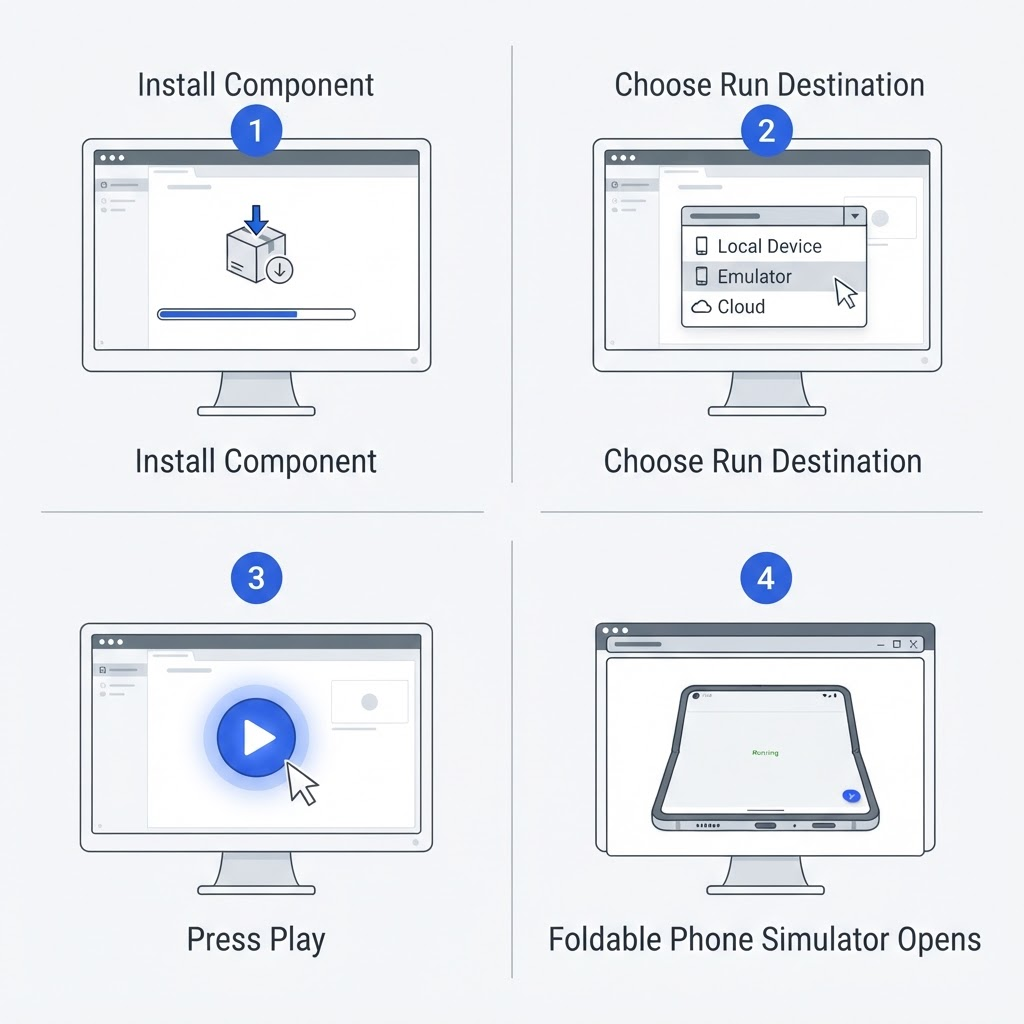
Apple’s iPhone Duo Simulator arrives with Xcode 27.1 beta. You do not need a new project: install the correct runtime, open your existing iPhone target, choose the Duo destination, and run it through Device Hub.
1. Check the host Mac
Xcode 27.1 beta requires macOS Tahoe 26.6 or later. Confirm the macOS version before downloading a large Xcode archive. Keep your stable Xcode installed if it still drives production archives.
Apple reference: Xcode 27.1 beta release notes · Xcode downloads
2. Download Xcode 27.1 beta
Get the beta from Apple’s Downloads page while signed in with an Apple Account. Move the expanded app into Applications and give it a distinct name if stable Xcode is already present. On first launch, allow Xcode to install required components.
Apple reference: Xcode downloads · Release announcement
3. Install the iOS 27.1 Simulator runtime
Open Xcode > Settings > Components. Install the current iOS platform or runtime shown for this Xcode build. If the project destination displays a Get button, Apple also supports installing the missing platform from there.
For managed environments, Apple documents xcodebuild -downloadPlatform iOS. Use the Xcode 27.1 beta developer directory when more than one Xcode is installed.
Apple reference: Downloading and installing additional Xcode components
4. Choose the app scheme and destination
Open the project, choose a scheme that contains your iOS app target, then open the run-destination menu in the Xcode toolbar. Select the iPhone Duo simulated device. Xcode filters destinations according to the selected scheme and installed platform support.
Apple reference: Select a build scheme and run destination
5. Run in Device Hub
Click Run or choose Product > Run. After a successful build, Device Hub opens a compact simulator window and Xcode attaches the debugger. Interact with the app, inspect variables, and watch scene lifecycle events while changing the available geometry.
Apple reference: Running your app on simulated or physical devices
6. If iPhone Duo does not appear
Confirm that you launched Xcode 27.1 beta rather than stable Xcode, that the iOS runtime finished downloading, and that the chosen scheme targets iOS. Restart Xcode only after checking Components and the run-destination menu. Read the release notes for beta-specific known issues.
Apple reference: Xcode 27.1 beta release notes · Install Simulator runtimes
7. Run a first validation pass
Check launch in closed and open layouts, live resize, state preservation, safe areas, keyboard appearance, large Dynamic Type, and a relaunch from a terminated state. Then repeat hardware-dependent scenarios on a physical device when available.
Apple reference: Testing in Simulator versus hardware · Testing your apps in Xcode
Bottom line
The shortest path is: Xcode 27.1 beta, iOS 27.1 runtime, iPhone Duo destination, Product > Run. The valuable part begins after launch—exercise transitions and state, not only a static wide layout.