What the iPhone Duo Simulator Can—and Can’t—Test
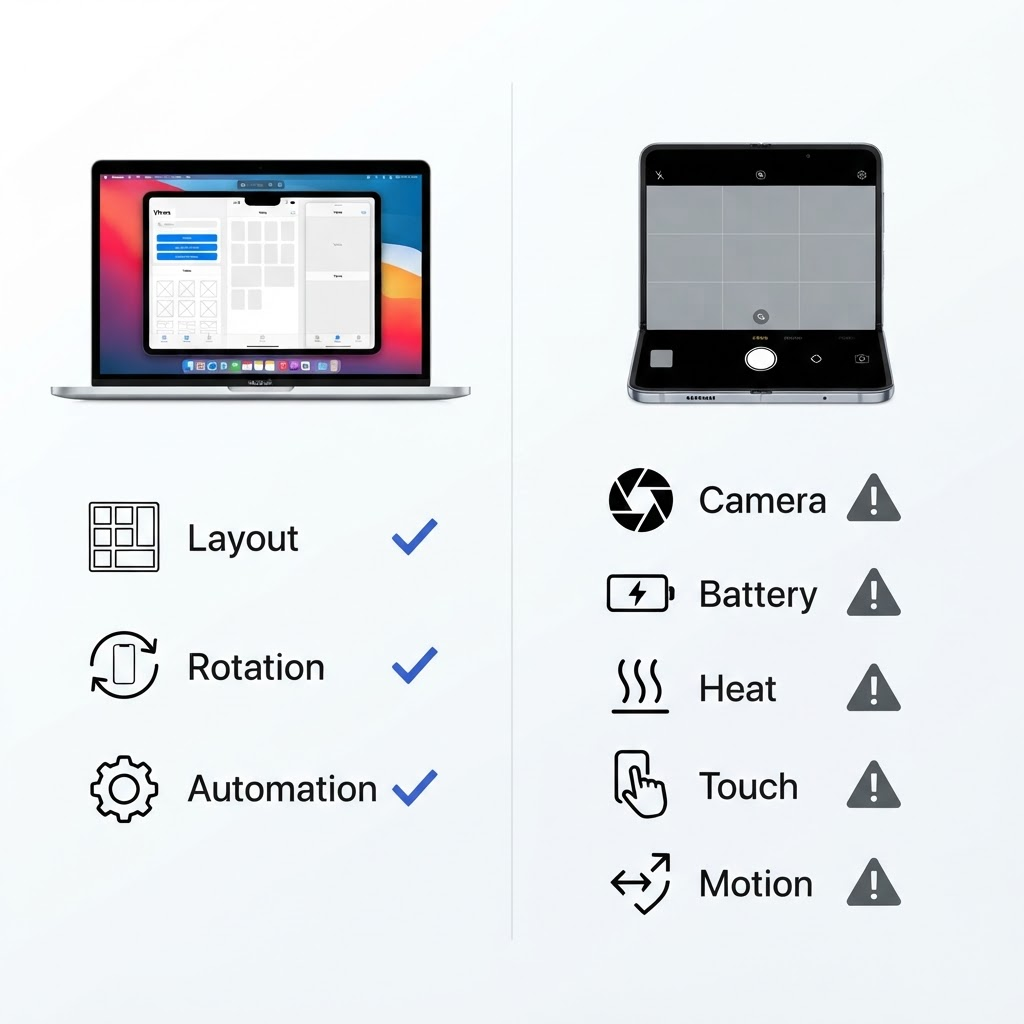
Use the Duo Simulator for layouts, lifecycle, automation, and state transitions. Use physical hardware for cameras, sensors, thermals, battery, touch, and final performance.
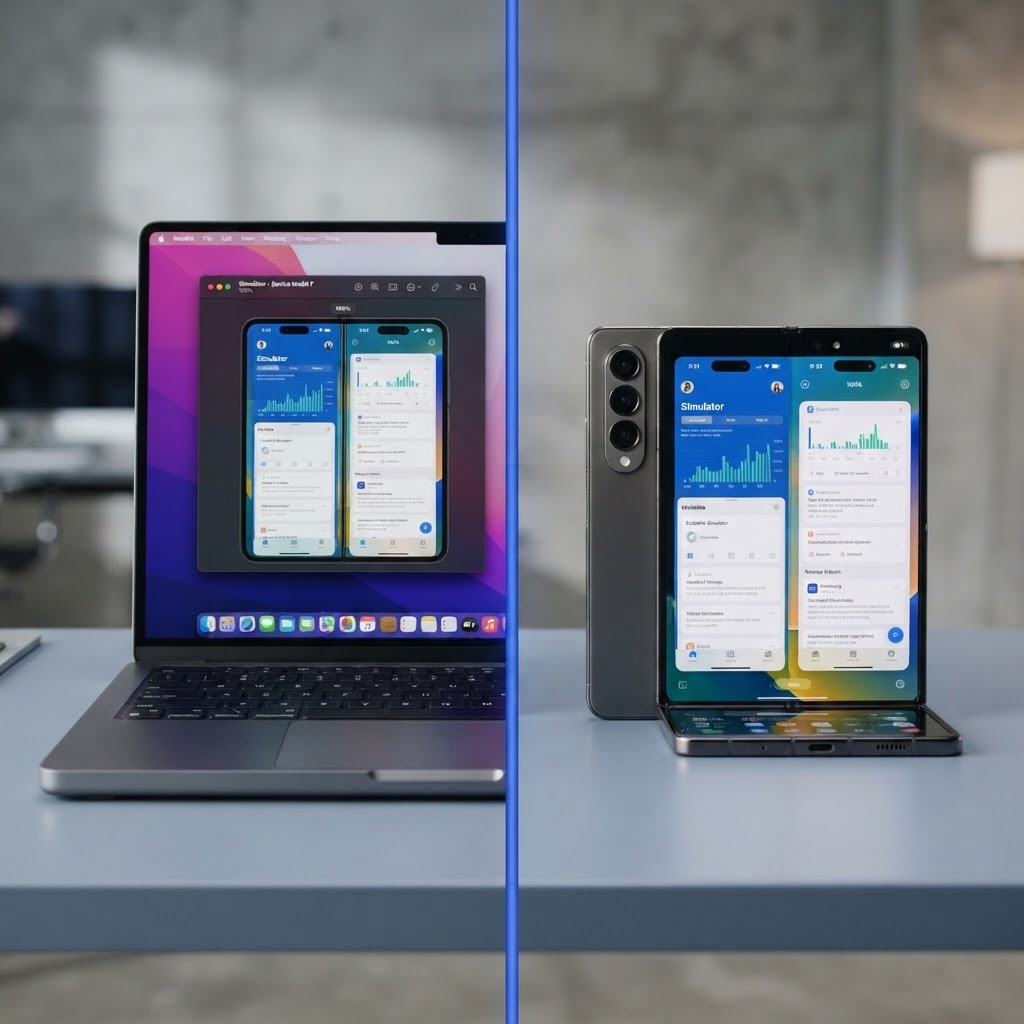
The iPhone Duo Simulator is a fast way to find adaptive-layout defects, but Apple explicitly warns that Simulator does not replicate all performance or hardware behavior. A good test plan assigns each question to the right environment.
What Simulator is good at
Use it for app launch, navigation, safe-area behavior, scene lifecycle, layout changes, state restoration, localization, accessibility passes, and repeatable UI automation. It is especially valuable when one interaction changes the available geometry and your UI must preserve context.
Apple reference: Running your app on simulated or physical devices · Testing your apps in Xcode
Layout and state transitions
Test compact and expanded widths, rotation, interruptions, background/foreground transitions, and any Duo presentation exposed by the runtime. Assert that selected content, scroll position, edits, and media playback survive the change.
Apple reference: Managing your app’s life cycle · UIScene
What Simulator cannot reproduce accurately
Apple says Simulator uses the Mac’s CPU, memory, GPU, and network. It is not an accurate source for device performance, memory pressure, networking speed, thermal behavior, or battery impact. Color and pixels per point can also differ from physical displays.
Apple reference: Simulator versus hardware — general and display differences
Missing hardware and API coverage
Apple lists camera, Bluetooth, ambient-light sensor, barometer, motion sensors, and proximity sensor among unsupported Simulator hardware. It also documents framework and API gaps. A Duo camera workflow, hinge feel, grip reach, microphone quality, or physical touch target cannot be signed off on a Mac window.
Apple reference: Simulator versus hardware — hardware and API differences
Duo-specific beta caveats
Xcode 27.1 beta release notes remain required reading. If Apple marks a feature unavailable or debugging path incomplete in the current runtime, label that test blocked rather than recording an app failure.
Apple reference: Xcode 27.1 beta release notes
A practical split
Automate logic and common UI flows in Xcode, run geometry and restoration scenarios in the Duo Simulator, then reserve physical-device time for ergonomics, cameras, sensors, performance, energy, thermals, rendering fidelity, and real touch.
Apple reference: Testing your apps in Xcode · Simulator versus hardware
Bottom line
The Simulator can prove that your app responds coherently to software states. It cannot prove that the final device feels, performs, photographs, heats, connects, or consumes power correctly. Use both and state which one produced each result.
Spotted something to fix, or an app we should cover?
This article is independent research, cross-checked against Apple's developer documentation. If something's out of date, or you know an app that deserves a look, let us know — and if you're building for iPhone Duo yourself, we're happy to talk.
hola@ayudantedigital.es